
Running Actions
An Action is a named, template-scoped operation, defined in the template editor — see Actions for its anatomy and how to define one. This page covers running an already-defined action: on one record, on a selection, and through an AI agent.
1. Running an Action
Section titled “1. Running an Action”Wherever a record appears, an Actions control (a bolt icon) opens a menu listing every enabled action on its template, each evaluated against that specific record:
- On the entity details page, it’s a labeled Actions button.
- On a table row or a card, in Workspace panes, it’s the same bolt icon — no need to open the record first.
An action that isn’t available right now is still listed, just disabled, with a tooltip explaining exactly why (naming the attribute, what it needs to be, and its current value) — for example “Incident Status must be ‘Open’; currently ‘Investigating’.”
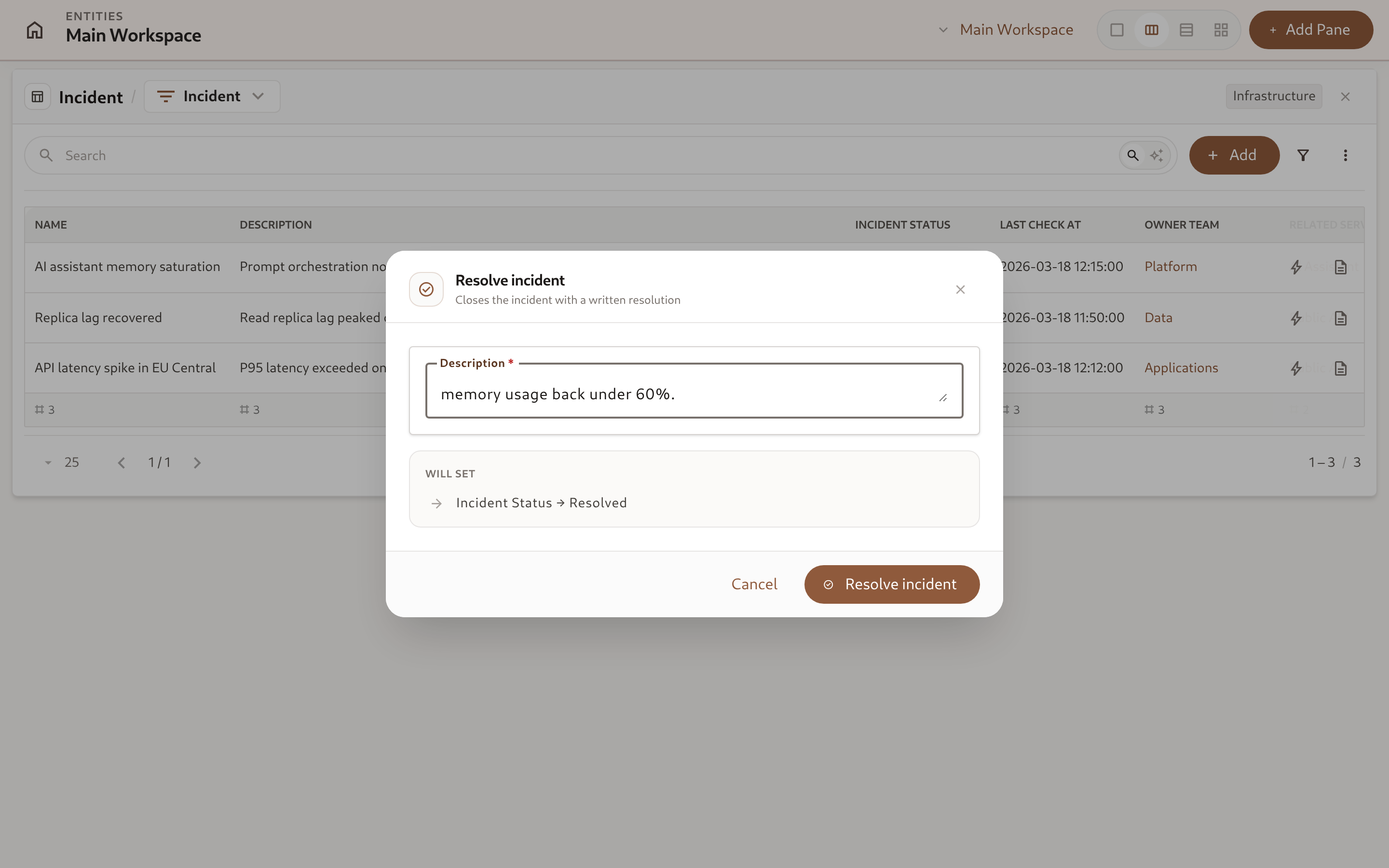
Picking an action with fields opens a dialog to fill them in, previews what it will set, and runs it on confirmation:
- If the action has no fields, it runs immediately on confirmation.
- If a required field is left empty, or a value fails validation, or the write would violate one of the template’s Rules, the dialog stays open with the offending field(s) highlighted so you can fix and resubmit.
- If the record changed since the menu was opened and the precondition no longer holds, running it is refused with a message explaining why — reopen the menu to see its current state.
2. Running an Action on a Selection
Section titled “2. Running an Action on a Selection”To apply one action to many records at once, turn on Selection mode from the workspace pane’s ⋮ menu, select the records, then open Run action on selection from the same menu and pick the action. The same fields and presets apply — the values you fill in are shared by every selected record.
Availability isn’t pre-checked for the whole selection (a selection of forty records would otherwise need forty calls) — every record is attempted, and the ones the action doesn’t apply to are reported in the results instead:
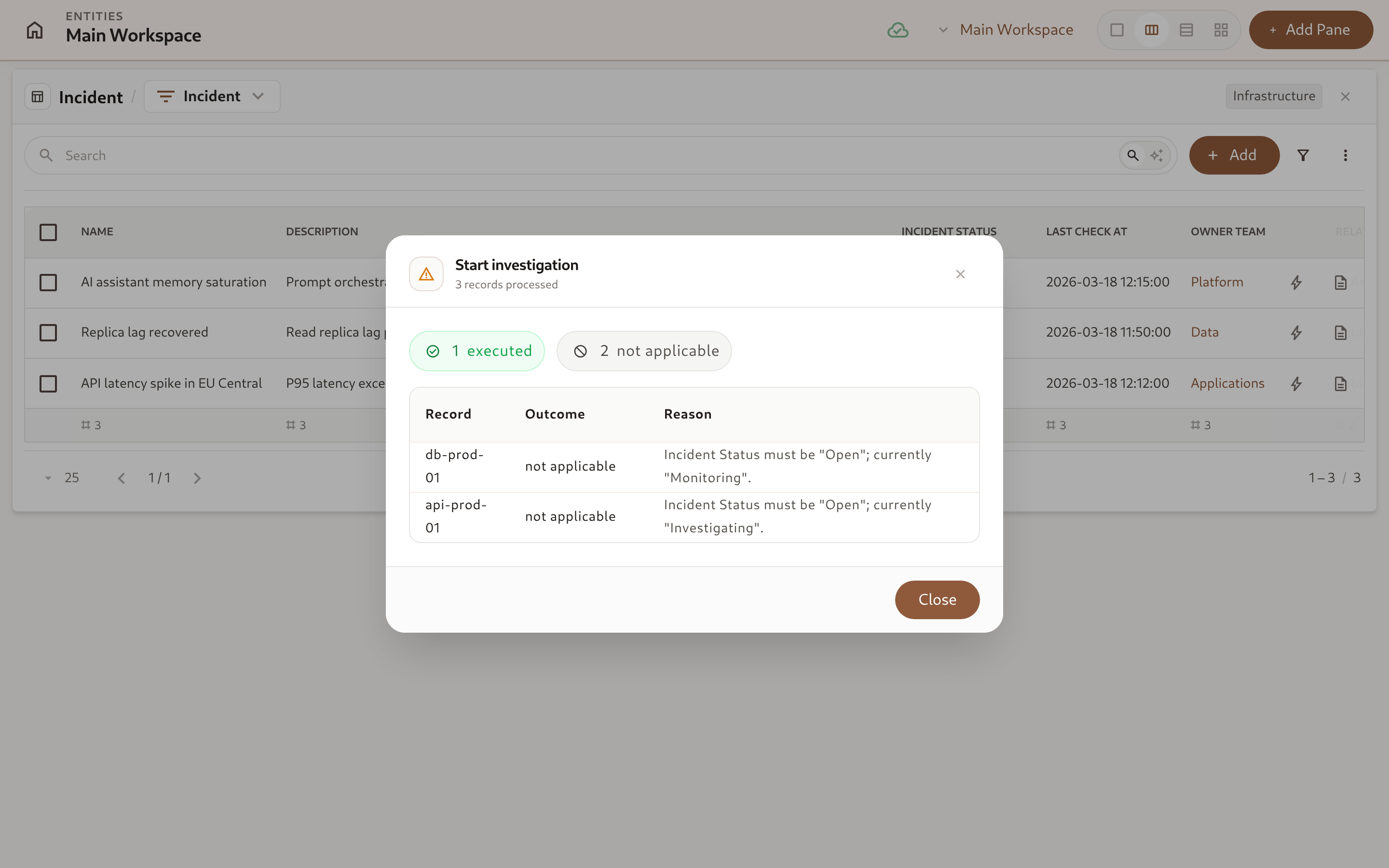
The results dialog breaks the outcome down into executed, not applicable (the precondition didn’t hold), refused by a rule, and failed (any other reason, such as a permission problem), with a per-record reason for everything that didn’t simply execute.
3. Actions for Agents
Section titled “3. Actions for Agents”Because an action bundles a precondition, its required fields, and its side effects into one named operation, it maps directly onto an MCP tool call — an agent doesn’t need to know the underlying attribute plumbing to run a safe, well-defined operation on a record.
-
List what can be done with
list_entity_actions(GET /entities/{id}/actions) — every enabled action on the record’s template, each already evaluated against its current values:{"data": [{"id": "01a09900-0000-7000-8000-000000000001","slug": "resolve_incident","name": "Resolve incident","available": true,"unavailable_reason": null,"fields": [{ "slug": "description", "name": "Description", "required": true, "hint": "What happened and what was done" }],"presets": [{ "slug": "incident_status", "name": "Incident Status", "display_value": "Resolved" }]}]} -
Run it with
execute_entity_action(POST /entities/{id}/actions/{slug}), sending only the values thefieldsarray asked for:Terminal window curl -X POST "https://api.omnismith.io/v1/entities/018b2f1b-8c1a-75b3-8000-7f0000010000/actions/resolve_incident" \-H "Authorization: Bearer omni_live_secret_key_demo" \-H "Content-Type: application/json" \-d '{"values": {"description": "Reduced batch size and recycled the worker pool; memory back under 60%."}}' -
Handle the two failure shapes the same way an operator’s dialog does:
- 409 — the precondition no longer holds (someone else changed the record first); the
detailnames which attribute and why. Re-list the record’s actions and reconsider rather than retrying blindly. - 422 — a required field was left out, a value doesn’t fit its attribute, or a rule refused the write;
errorsnames the exactattributes.<slug>field to fix.
- 409 — the precondition no longer holds (someone else changed the record first); the
-
Apply one action to many records with
batch_execute_entity_action(POST /entities/batch/actions/{slug}, at most 100entity_idsper call) instead of looping single calls — it’s the same operation the bulk-selection UI uses, and returns the same per-recordexecuted/precondition_failed/rule_violated/failedoutcomes described above.
Because list_entity_actions and execute_entity_action are generated from the same MCP-tagged endpoints an operator’s browser calls, an agent and a human always see exactly the same availability and the same rules.
4. Reacting to an Executed Action
Section titled “4. Reacting to an Executed Action”An Automation can trigger On Action Executed for a specific action on a template — useful for notifying a channel whenever, say, Resolve incident runs, regardless of who or what ran it. The trigger fires even if the action restated values the record already had, so it’s a reliable hook for “this operation happened,” not just “something changed.”
Automations can also run an action themselves: the Run Action automation step executes a named action on the trigger record, or on a record it references, with the same precondition, required fields and presets. An action run by an automation does not fire On Action Executed automations, so automations cannot set each other off in a loop.