
Attributes
Attributes are the foundational data field definitions in Omnismith. They define what information can be stored in entity records, how data is validated, and how metrics are tracked over time.
1. Attribute Types (Functional Classification)
Section titled “1. Attribute Types (Functional Classification)”When creating an attribute, you choose one of four primary functional types:
| Attribute Type | Description | Primary Use Case | Storage & Analytics Behavior |
|---|---|---|---|
| Dimension | Discrete properties and descriptive text. | Names, SKUs, Categories, Descriptions. | Stored in standard relational tables with an Audit Change Log tracking all edits over time. |
| Metric | Numeric values that change over time. | CPU load, Account Balance, Latency, Storage size. | Stored in high-performance time-series telemetry storage. Exposes time-series aggregation queries (min, max, avg, sum). |
| List | Fields with a predefined set of selectable options. | Priority (Low, Medium, High), Status (Open, In Progress, Closed). | Options are managed dynamically. Useful for strict form validation and filter chips. |
| Reference | Pointer links that connect one entity to another template. | Support Ticket → Customer, Order → Product. | Establishes relational links across entity records with target display attribute resolution. |
2. Supported Data Types
Section titled “2. Supported Data Types”Every attribute specifies a data type that enforces strict validation rules on values entered via the UI or API:
- String: Standard UTF-8 text strings (e.g. Hostname, Customer Name, Serial Code).
- Number: Integers or floating-point decimal numbers (e.g. Price, Temperature, Stock Quantity).
- Boolean: Binary flags (
true/false) representing status toggles (e.g.Active,Is VIP). - Date: Calendar date formatted as
YYYY-MM-DD(e.g. Expiration Date, Birth Date). - DateTime: ISO 8601 precise timestamp (e.g.
2026-07-20T20:15:00Z). - File: Attachment reference for uploaded documents (PDFs, spreadsheets).
- Image: Media attachment reference for images (PNG, JPEG).
Date and DateTime values are accepted in other common spellings too (2026-07-20 20:15:00, 20 Jul 2026) and are always stored in the form above: a date as YYYY-MM-DD, a datetime as an ISO 8601 timestamp with its offset. A datetime sent without an offset is taken as UTC, so 2026-07-20 20:15:00 is stored as 2026-07-20T20:15:00+00:00; a value already in that form is kept exactly as sent. A date that does not exist, such as 2026-02-30, is rejected.
3. Creating & Managing Attributes in the UI
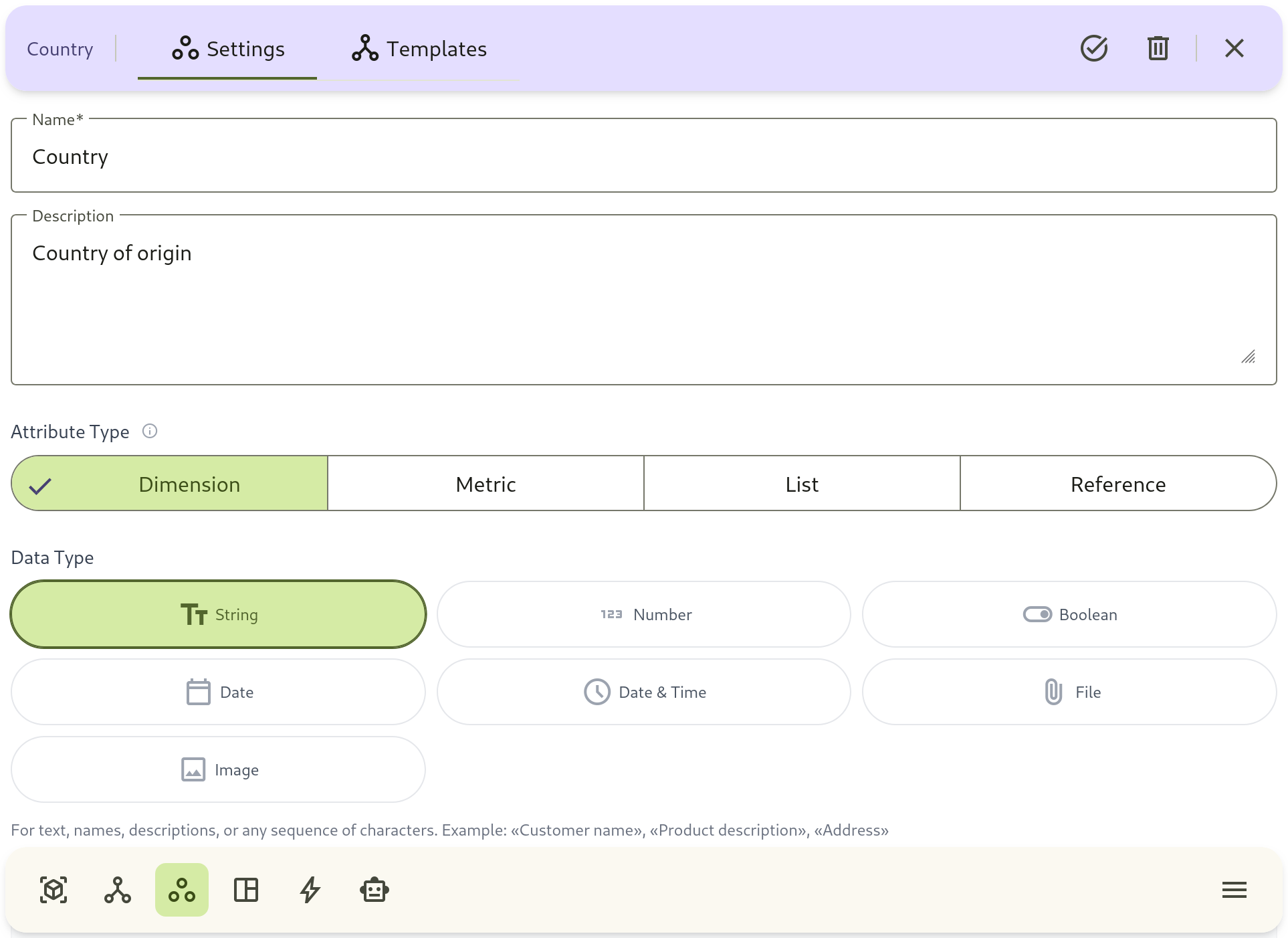
Section titled “3. Creating & Managing Attributes in the UI”- Navigate to Blueprints → Attribute Library in the sidebar navigation launcher.
- Click + Create Attribute (or select an existing attribute to edit).
- Configure Basic Settings:
- Name: Human-readable field title (e.g.
Response Latency). - Slug (Optional): A project-unique
snake_casestring identifier (e.g.response_latency,cpu_usage,sku) used for human-readable API writes, telemetry streams, and search filters without UUID lookups. - Attribute Type: Choose between Dimension, Metric, List, or Reference.
- Data Type: Select the underlying field type (String, Number, Boolean, Date, DateTime, File, Image).
- Name: Human-readable field title (e.g.
- Type-Specific Configurations:
- If List: Add predefined option items with custom labels and values.
- If Reference: Select the Target Template and the Target Display Attribute used to render linked records in dropdowns.
- Click Save Changes.
4. Project-Unique Slugs (slug)
Section titled “4. Project-Unique Slugs (slug)”Attributes can be assigned an optional string slug during initial creation or schema updates:
- Human-Readable API Payloads: External systems, scripts, and IoT telemetry agents can reference attributes by
attribute_slug: "cpu_usage"instead of querying database UUIDs. - Project-Level Scoping: Slugs are enforced as unique within their project workspace, allowing different projects to use identical, intuitive slug names (e.g.
skuorprice) without collision. - UI Badge Tags: In the attribute directory table, active slugs appear as monospace badges for quick copying into code and configurations.
- Deterministic Resolution: When both
attribute_idandattribute_slugare provided,attribute_idtakes precedence for backward compatibility.